

Battlefield 6 – Optimal Graphics Settings
In this graphics settings guide for Battlefield 6, I’ll show you how to significantly boost your FPS without sacrificing image quality. You’ll also get a clear look at how each parameter impacts both performance and visuals.
Testing Rig (3440×1440):
- GIGABYTE RTX 5070Ti Windforce OC 16Gb
- AMD Ryzen 5 7500F
- MSI Pro B650-S WIFI
- ADATA XPG Lancer 6000MHz Cl30 32Gb
These optimal settings are not targeted at any specific PC configuration. These optimal settings are designed to boost FPS on any PC, while maintaining graphics quality as close to Ultra as possible. This guide will help you find the best graphics settings for smooth performance in this game.
- Start by applying these recommended settings.
- If your FPS is still below your target, consult the detailed breakdown of each graphics option in this guide to adjust them for maximum performance and smoother gameplay.
- Conversely, if you have performance headroom, you can increase certain settings to further improve visual quality.
Table of Contents
Battlefield 6 Optimal Settings
- Texture Quality: “В зависимости от объема VRAM видеокарты”
🛈 On GPUs with 8 GB VRAM, it’s best to use “High” - Texture Filtering: “Overkill”
🛈Bbut you can gain about ~1% performance with almost imperceptible visual changes by dropping to “Ultra“ - Mesh Quality: “Ultra”
🛈 Use lower only if you need to reduce CPU load - Terrain Quality: “High”
- Undergrowth Quality: “High”
- Effects Quality: “Low”
🛈 But if you don’t have performance issues in intense battles, leave this setting at “High” - Volumetric Quality: “High”
- Lighting Quality: “High”
- Local Light & Shadow Quality: “Overkill”
- Sun Shadow Quality: “Ultra”
🛈 But if you need to boost performance on both GPU and CPU, you may sacrifice shadow quality and use “High” or even “Medium”, as this is one of the most demanding settings - Shadow Filtering: “PCSS”
- Reflection Quality: “High”
- Screen Space Reflections: “High”
- Post Process Quality: “High”
🛈 Or Low if you disable all post-processing effects - Screen Space AO & GI: “SSGI Low”
🛈 But if you need an FPS gain (when you are GPU-limited), use “GTAO High” - High Fidelity Objects Amount: “Ultra”
🛈 But if you encounter CPU performance limitations and need a frame rate increase, lower this setting
Texture Quality
This setting determines the resolution of textures. Changing this requires a game restart, making direct comparisons difficult. Monitor the VRAM usage indicator in the game settings. For 8GB GPUs, High is the recommended limit.
Optimal Setting: Based on VRAM (High for 8GB)
Texture Filtering
Adjusts anisotropic filtering. Higher values make textures appear sharper when viewed at an angle. This has negligible impact on performance, so Overkill is recommended. Dropping to Ultra might save 1% FPS with almost no visual change.
Optimal Setting: Overkill
Mesh Quality
The Mesh Quality parameter adjusts geometric detail based on distance. At lower settings, you will notice objects ‘popping in’ as you move. Pay close attention to the level of detail on the white hangar in the center of the frame, the ruined walls in front of it, and the trees.

Low

Medium

High

Ultra

Overkill

Keep in mind that this setting also impacts CPU performance to a similar extent. I wouldn’t recommend going below the Medium preset; Ultra is the ideal choice. You should only consider lower values if you specifically need to reduce the load on your CPU.
Optimal Setting: Ultra, lower values should only be used if you need to reduce CPU load
Terrain Quality
Terrain Quality adjusts terrain tessellation, giving the ground a more volumetric and detailed appearance:
Low

Medium

High

This setting has a relatively minor impact on performance, and even then, only in certain locations. Therefore, I recommend using the High setting.
Optimal Setting: High
Undergrowth Quality
Determines the density of vegetation and small debris. Tests showed minimal visual difference between presets.
Optimal Setting: High
Effects Quality
The Effects Quality parameter is responsible for the quality of various particle effects such as fire, smoke, explosions, bullet tracers, etc. In practice, very few people will notice the visual difference during gameplay.
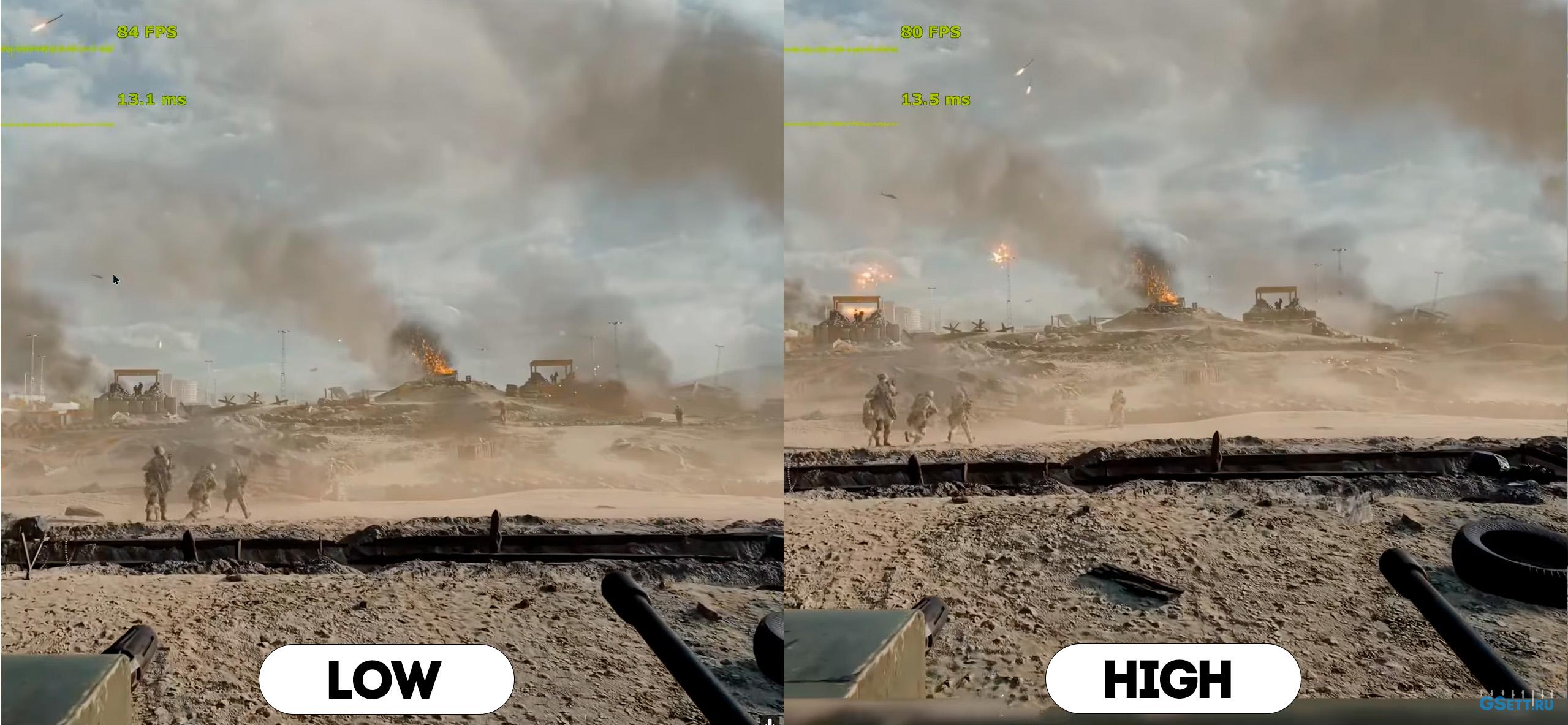
However, the Low setting will gain you about 6–7% performance during intense firefights and improve your 1% and 0.1% lows, which will positively affect the overall smoothness of the game. If you have no performance issues during dynamic battles, feel free to leave this on High.
Optimal Setting: Low (or High if performance allows).
Volumetric Quality
This setting controls the detail of fog and the light rays passing through it:
Low

High

Ultra

There is no visual difference between High and Ultra, so I recommend using the High option.
Optimal Setting: «High»
Lighting Quality
The Lighting Quality setting adjusts the intensity of light from artificial sources.:
Low

High

It does not affect performance, so I recommend using the High value.
Optimal Setting: High
Local Light & Shadow Quality
This parameter is responsible for the draw distance of light and shadows from artificial sources:
Low

High

Overkill

The impact on performance is extremely minor, even in locations with a large number of light sources. Therefore, I recommend using the maximum value.
Optimal Setting: Overkill
Sun Shadow Quality
This is one of the most demanding settings in Battlefield 6, and it regulates the draw distance and level of detail for shadows cast by the sun and the moon:
Low

Medium

High

Ultra

Overkill

Shadows only look good at the Ultra and Overkill presets, as lower values noticeably degrade the game’s visuals. Therefore, I would still recommend using the Ultra setting.
However, it is also worth noting that this setting has a significant impact on CPU performance. If you need to increase your frame rate, it might be worth sacrificing shadow quality and using High or even Medium. Additionally, keep in mind that this setting significantly affects video memory (VRAM) consumption.
Optimal Setting: Ultra, or «Medium» if you need to boost both GPU and CPU performance, or if you are limited by VRAM.
Shadow Filtering
Shadow Filtering affects the softness of long shadows:
PCF

PCSS

Among all the available options, PCSS (Percentage-Closer Soft Shadows) provides the most natural look.
Optimal Setting: «PCSS»
Reflection Quality
This controls cubemap reflections visible when SSR isn’t used:
Low

Medium

High

It has minimal performance impact, so High is recommended.
Optimal Setting: High
Screen Space Reflections
Screen Space Reflections create reflections of objects visible on the screen on smooth shiny surfaces.
Off

Low

High

I recommend using High because lower quality noticeably reduces the resolution of reflections. Also, Battlefield 6 doesn’t have many reflections, so this setting does not affect performance in most cases.
Optimal Setting: «High»
Post Process Quality
This setting is responsible for the quality of post-processing effects, such as Motion Blur, Film Grain, Chromatic Aberration, and so on. If you have disabled all of these effects, then this setting should not have any impact. However, if you like these effects and have left them enabled, you should set this parameter to High, as I noticed a slight performance drop on the Ultra preset.
Optimal Setting: High, or Low if you are disabling all post-processing effects.
Screen Space AO & GI
This parameter is responsible for the quality and method of ambient occlusion and global illumination.
Off

GTAO Low

GTAO High

SSGI Low

SSGI High

GTAO (Ground Truth Ambient Occlusion) has only a minor impact on performance, but in my opinion, it darkens corners and surface contact points excessively.
SSGI, on the other hand, is much more demanding because it uses screen-space ray tracing to simulate bounced light. However, it looks better and more realistic.
I recommend using SSGI Low, as there is almost no visual difference compared to “High,” which cannot be said for the difference in performance.
However, if you need to gain an FPS boost (when your performance is limited by the GPU), then use GTAO High.
Off

GTAO Low

GTAO High

SSGI Low

SSGI High

Optimal Setting: SSGI Low, but if you need an FPS boost (when GPU-bound), use “GTAO High”
High Fidelity Objects Amount
The High Fidelity Objects Amount parameter controls the animation update intervals for vehicles and players. At lower quality settings, the animation frame rate of other players is reduced, which decreases its smoothness. Additionally, when vehicles explode, their debris disappears before even hitting the ground.
This parameter only affects CPU performance—the difference in frame rate (when CPU-bound) between the lowest and highest values can be as much as 10–20% during moments that require heavy computational power.
Therefore, if you encounter a CPU performance limitation (for example, if your GPU usage is below 90% according to the monitoring graph) and you need to gain an FPS boost, try lowering this parameter.
Optimal Setting: Ultra, but if you are facing a CPU bottleneck and need to increase your frame rate, then lower this setting
Conclusion
By using the optimal graphics settings for Battlefield 6 from this guide, you will get a solid boost in frame rate—up to 30% in heavy scenes—compared to the maximum Overkill settings. At the same time, the visual quality remains practically the same, and during actual gameplay, you won’t notice any difference at all.
Furthermore, if you additionally lower two specific settings—Screen Space AO & GI to GTAO High and Sun Shadow Quality to High —the performance gain will increase to 55%, though with more noticeable changes in graphics. In the screenshots below, this configuration is labeled as “Optimized +”.
For example, here are comparisons at 3440x1440p resolution (screenshots were captured at 2560×1440) on a Ryzen 7500f and RTX 5070 Ti. In both cases, DLAA anti-aliasing is used:
Max Settings

Optimized

Optimized+

Max Settings

Optimized

Optimized+


Subscribe
0 Comments
Most Voted